Team Capacity & Workload Tracker
A fictionalized case study showing how a shared project board rolls up into a weekly team-capacity view and a leadership rollup — the reporting pattern I built running a real creative operations function.
A fictionalized sample built to demonstrate a real pattern: a shared board rolls up into a weekly capacity view a team lead scans daily, and the same data rolls up again into a leadership-altitude snapshot. Team, names, and figures below are invented — the structure reflects reporting practices I built and used running a real creative operations function.
Team View
Marketing and creative teams run on shared capacity, but capacity is invisible until someone's overloaded or a project stalls waiting on a person who's already stretched thin. This view surfaces weekly workload at a glance, by person, so a lead can rebalance before it becomes a deadline problem rather than after.
The data below is a fictionalized sample built to demonstrate the pattern — the team, names, roles, and project details are all invented for this example. The structure and approach reflect tooling and reporting practices I built and used running a real creative operations function.
How It Was Built
- A shared board tracks every active project as a row, assigned to one or more team members with estimated hours per week.
- Each person's total weekly load rolls up automatically from their assigned items — no manual time tracking required.
- A bubble view (this page) turns that rollup into a scan-able weekly grid: size and color flag who's light, on-target, or over capacity.
- The same view doubles as a team stand-up tool — a two-minute glance replaces a status-by-status status meeting.
- The pattern isn't tied to one platform — it works anywhere work lives on a board with assignees and estimated hours (Monday.com, Asana, ClickUp, and similar tools all support it).
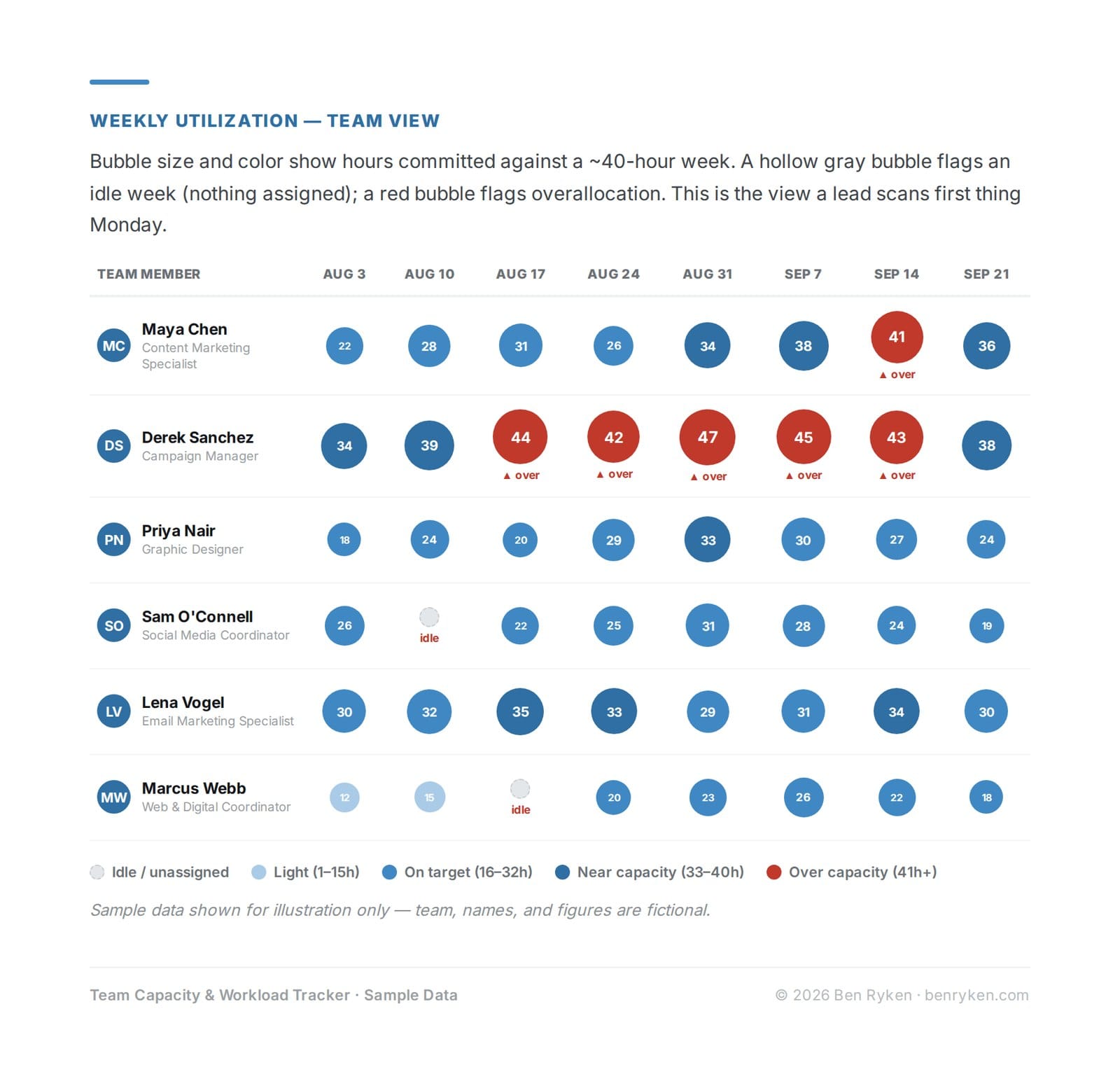
Drilldown — One Person's Week
Clicking into any bubble opens that person's assigned items for the week — the same rollup that produced the number, broken back out into individual projects.
Example: Derek Sanchez · Week of Sep 14 · 43h assigned
Flagged over capacity two weeks running — the drilldown shows why, and what could move.
- Critical — Fall Campaign Launch — Media Plan Sign-off (14h · Due Sep 16)
- High — Partner Newsletter — Q4 Series (9h · Due Sep 18)
- Medium — Website Refresh — Stakeholder Review (8h · Due Sep 19)
- Medium — Regional Event Recap Content (7h · Due Sep 20)
- Low — Internal Process Documentation (5h · No due date)
Over-Capacity Weeks: 6 · Idle Weeks: 2 · Avg Load, Latest Week: 27.5h
At a glance, this tells a lead two things a status meeting usually takes twenty minutes to surface: who's about to burn out, and who has room to pick something up. The same underlying data rolls up to a leadership-level view next — less detail, more altitude.
VP Rollup
A weekly per-person view is the right tool for a team lead. It's the wrong tool for a VP skimming eight teams before a Monday staff meeting — too much detail, no clear signal. This rollup strips names and individual hours out entirely and surfaces the three things leadership actually asks: is the team trending toward burnout or slack, how many people are flagged this week, and where is the team's time actually going.
This is a fictionalized sample built to demonstrate the pattern, and it rolls up from the same underlying weekly data shown in the companion Team view — the team, names, and figures are invented for this example. The structure reflects reporting practices I built and used running a real creative operations function, and the approach isn't tied to one platform (Monday.com, Asana, ClickUp, and similar tools all support it).
How It Rolls Up
- Same board, same weekly per-person data as the team-level view — nothing is re-entered or tracked twice.
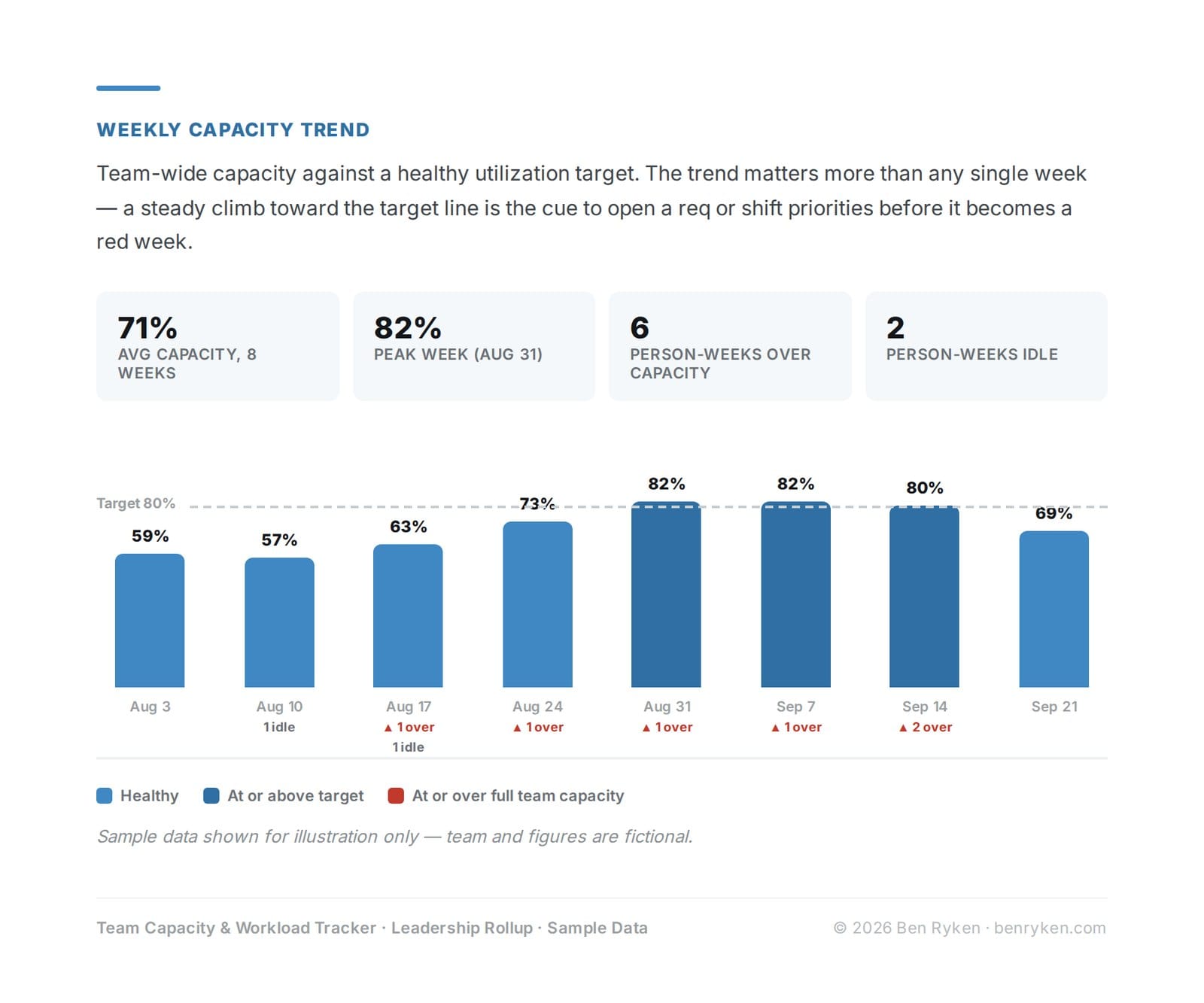
- Individual hours aggregate into one team-capacity percentage per week, benchmarked against a target utilization line.
- Per-person over/idle flags roll up into a simple headcount — how many, not who.
- Project-level assignments roll up into a resourcing view — where the team's collective time is actually going.
Weekly Capacity Trend
Team-wide capacity against a healthy utilization target. The trend matters more than any single week — a steady climb toward the target line is the cue to open a req or shift priorities before it becomes a red week.
Top Initiatives by Resourcing
Where the team's collective time is going this period, ranked by share of total capacity. This is the question that usually surfaces only when something slips — here it's visible every week, before a reprioritization conversation is forced by a deadline.
- Fall Campaign Launch — 23%
- Website Refresh — 12%
- Partner Newsletter Series — 10%
- Regional Event Recap & Content — 7%
- Internal Process Documentation — 4%
- Other ongoing & support work — 44%